webCAN - stream, decode & plot CAN bus data in your browser

Need to stream, DBC decode and visualize CAN bus data directly in your browser?
webCAN is a 100% free browser-based GUI for the CANsub - our CAN-USB/Ethernet interface. The software is served by the CANsub - simply enter the device URL in your browser to start.
No drivers, no software installation, no internet required.
The tool lets you easily configure your CANsub, stream raw/decoded CAN frames, visualize signals - and much more.
Learn more below!

 ZERO INSTALL
Open your browser, enter device URL - the webCAN app is served straight from the CANsub
 MULTI-CAN
Stream 2/4 x CAN (time sorted). 2M frame buffer. 20K+ frames/s. Powerful ID/signal filters
 DBC DECODE
Assign multiple DBC files per CAN bus to show decoded data. PGN, multiplexing & TP support
 LIVE PLOTS
Visualize CAN signals in real-time via smooth plots incl. live zoom & historical navigation
 TRANSMIT
Deploy advanced transmit sequences. 10 µs edge-based TX precision. Encode from DBC
 EXPORT/IMPORT
Export raw / decoded data to CSV for later re-import or analysis in Excel or Python
Open the webCAN GUI instantly in your browser
webCAN is embedded in the CANsub firmware - the device serves the entire app over HTTPS the moment you plug in via USB or Ethernet. No installer, no driver, no per-OS build, no license. Just enter the device URL shown on the LCD display and the GUI loads in your browser. All traffic is encrypted over HTTPS, with optional mTLS access control for networked setups.
Easily configure device incl. bit-rate auto-detection
Set the bit-rate per CAN bus manually (incl. sample point control) - or use auto-detection. Set device filters, listen-only mode and error-frame capture in a few clicks. Further, you can easily export/import your CANsub config for project-based re-use and sharing across devices.
Load & assign DBC files for real-time signal decoding
Load DBC files into webCAN and assign them per CAN bus - with support for multiple DBC files per CAN bus, PGN decoding and multiplexing. DBC files/assignments are cached in the browser and persist across page reloads.
Summarize unique frames/signals at a glance
The summary view displays unique raw CAN frames or DBC decoded CAN signals incl. count, frames/second, fading of stale bytes, PGN mode and more. In decoded mode you can display either MIN, MAX or AVG physical values per signal.
Trace every CAN frame in raw or decoded form
The trace view shows every received/transmitted frame across channels sorted by their µs device-generated timestamps. Switch to decoded mode for live per-signal values when DBC files are loaded. The cyclic buffer carries up to 2M frames with automatic first-in-first-out eviction.
Plot DBC decoded signals in customizable live charts
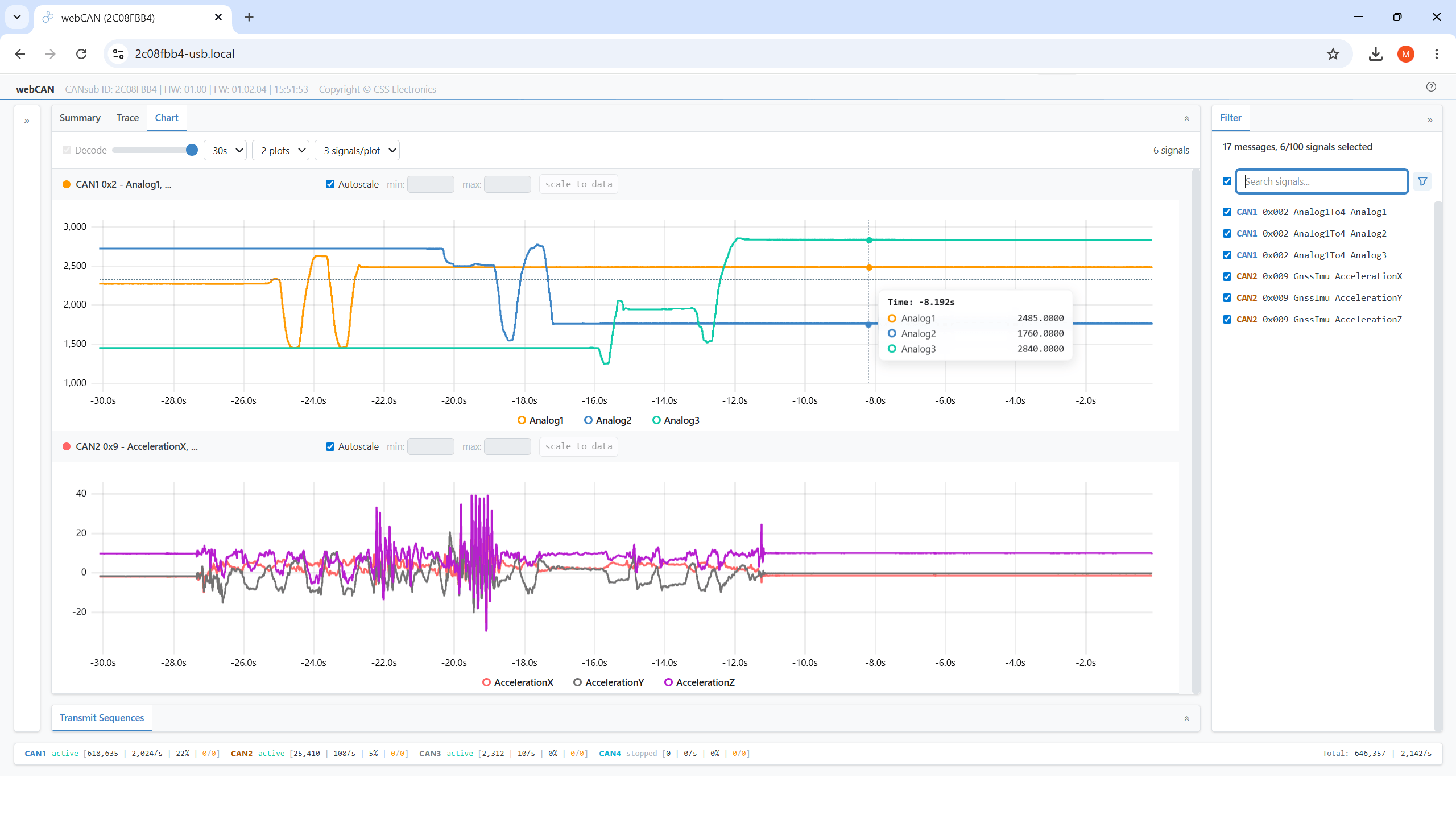
Easily visualize any CAN signals in smooth real-time plots. Customize the number of stacked plots and signals per plot - as well as Y-axis settings like auto-scale and fixed min/max. Quickly change what to display via filters, zoom in as needed - and seamlessly navigate the full historical buffer.
Filter raw or decoded data by ID, signal name or PGN
The filter panel lets you quickly filter your data by CAN bus, ID/PGN, message name or signals - with powerful search queries for batch filtration. Filters apply across the summary/trace/chart view - and can be used to control what CSV data you export.
Tag & decode ISO-TP, J1939 TP and NMEA 2000 Fast Packets
Tag & DBC decode multi-frame transport-protocol payloads for ISO-TP, J1939 TP and NMEA 2000 Fast Packets. Assembled TP frames appear alongside raw frames in trace and summary with full DBC decoding support (incl. variable-length signals as per e.g. J1939-73 DM1 DTCs / OBD2 DTCs).
Deploy transmit sequences incl. optional DBC encoding
Define multi-frame transmit sequences per channel with custom period, interframe spacing and count limit. Use the 'DBC encoder' to type physical signal values (incl. PGN/multiplexing support). Sequences are deployed on the device for 10 µs scheduling precision.
Export raw/decoded CAN data to CSV - or re-import
Export the filtered summary or trace buffer to CSV in raw or DBC-decoded form. This lets you easily load the data in Excel, convert to PEAK TRC or Vector ASC - or re-import back into webCAN for later analysis.
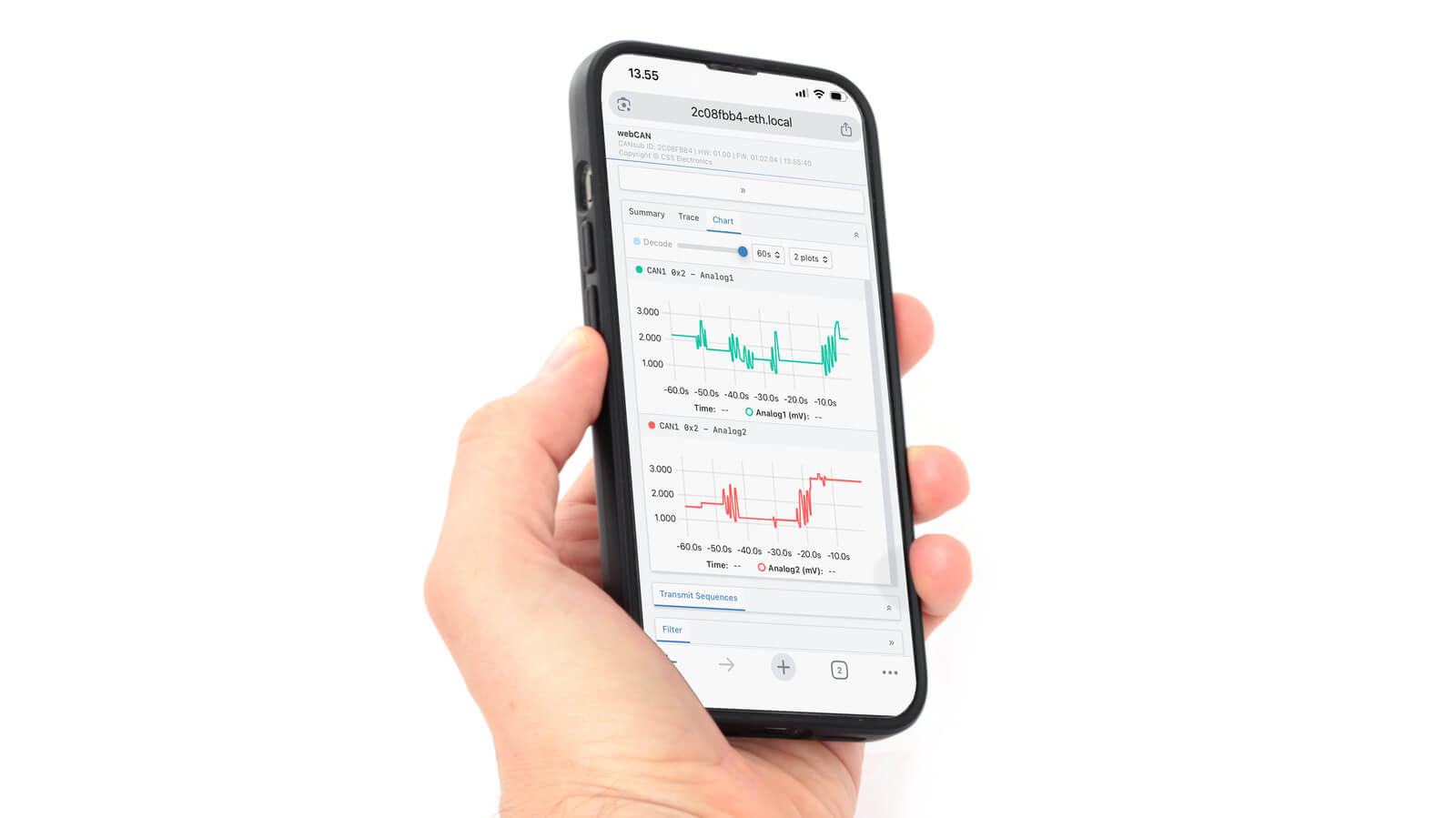
Use webCAN on any device - laptop, tablet or smartphone
webCAN is served as a standard web app over HTTPS, which means it runs natively on Windows, macOS, Linux - across laptops, tablets and smartphones. Connect the CANsub to a WiFi router via Ethernet and open the device URL on whichever device you have at hand.
webCAN gallery
Below are various pictures of webCAN highlighting key features:
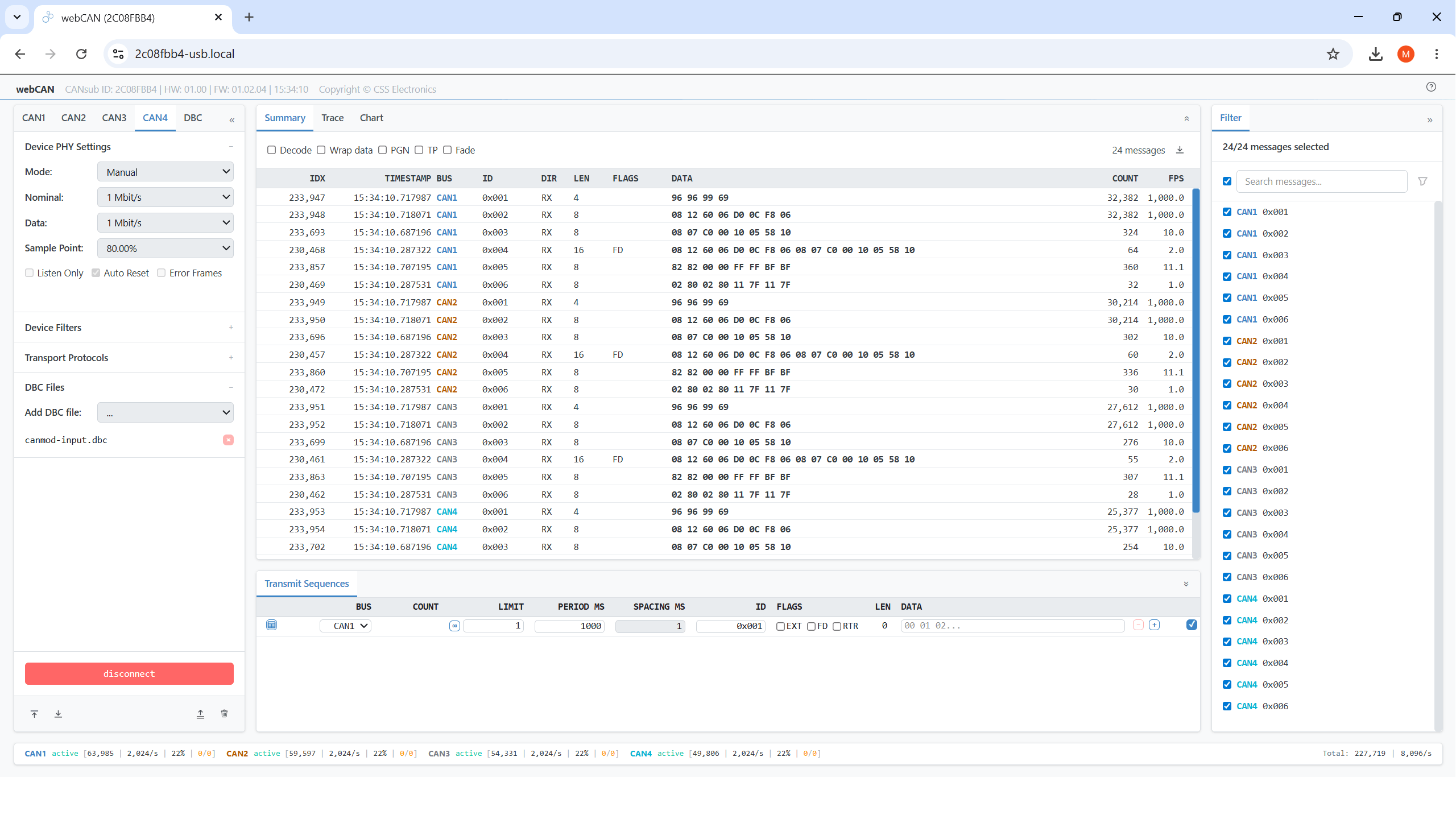
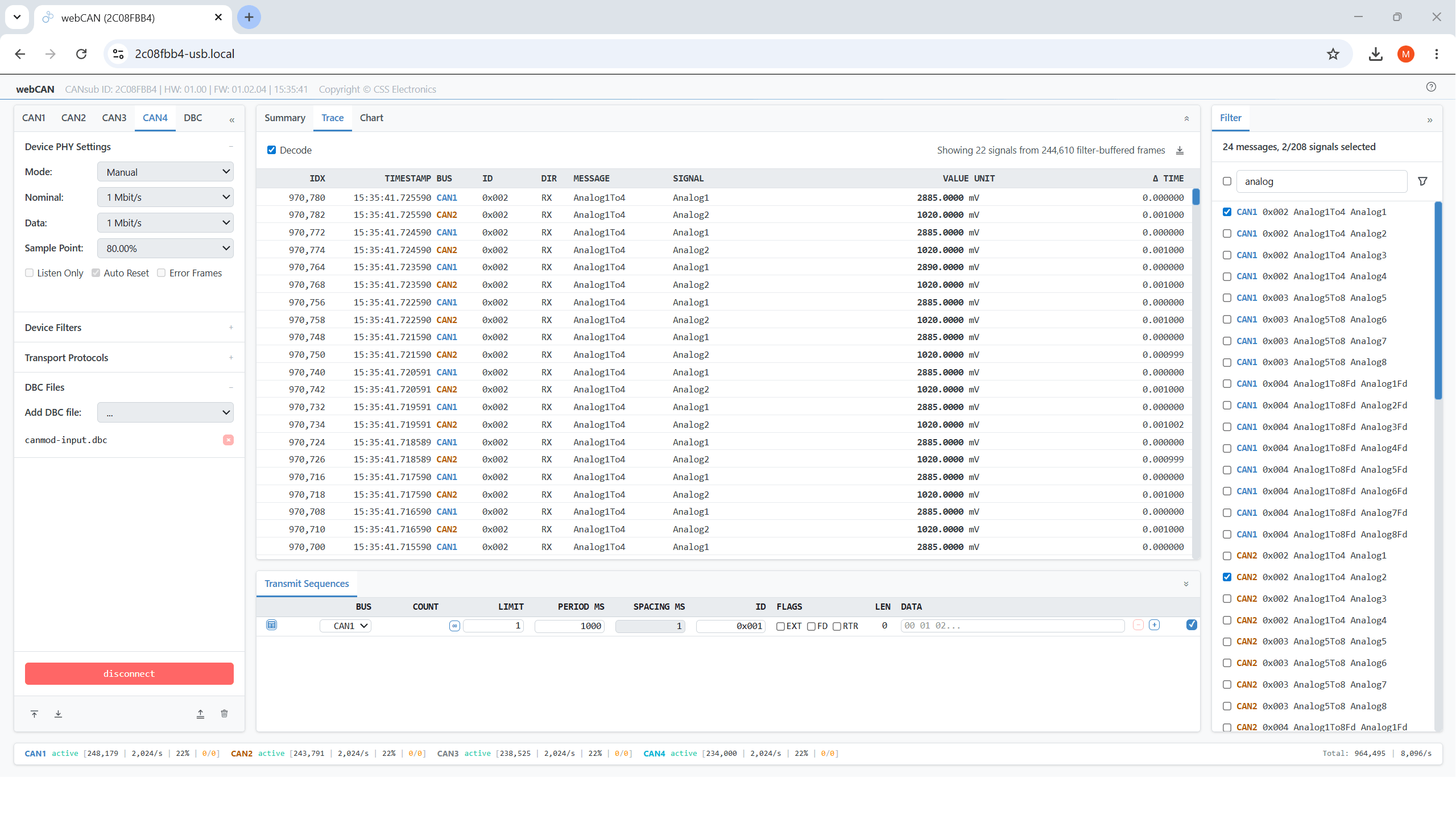
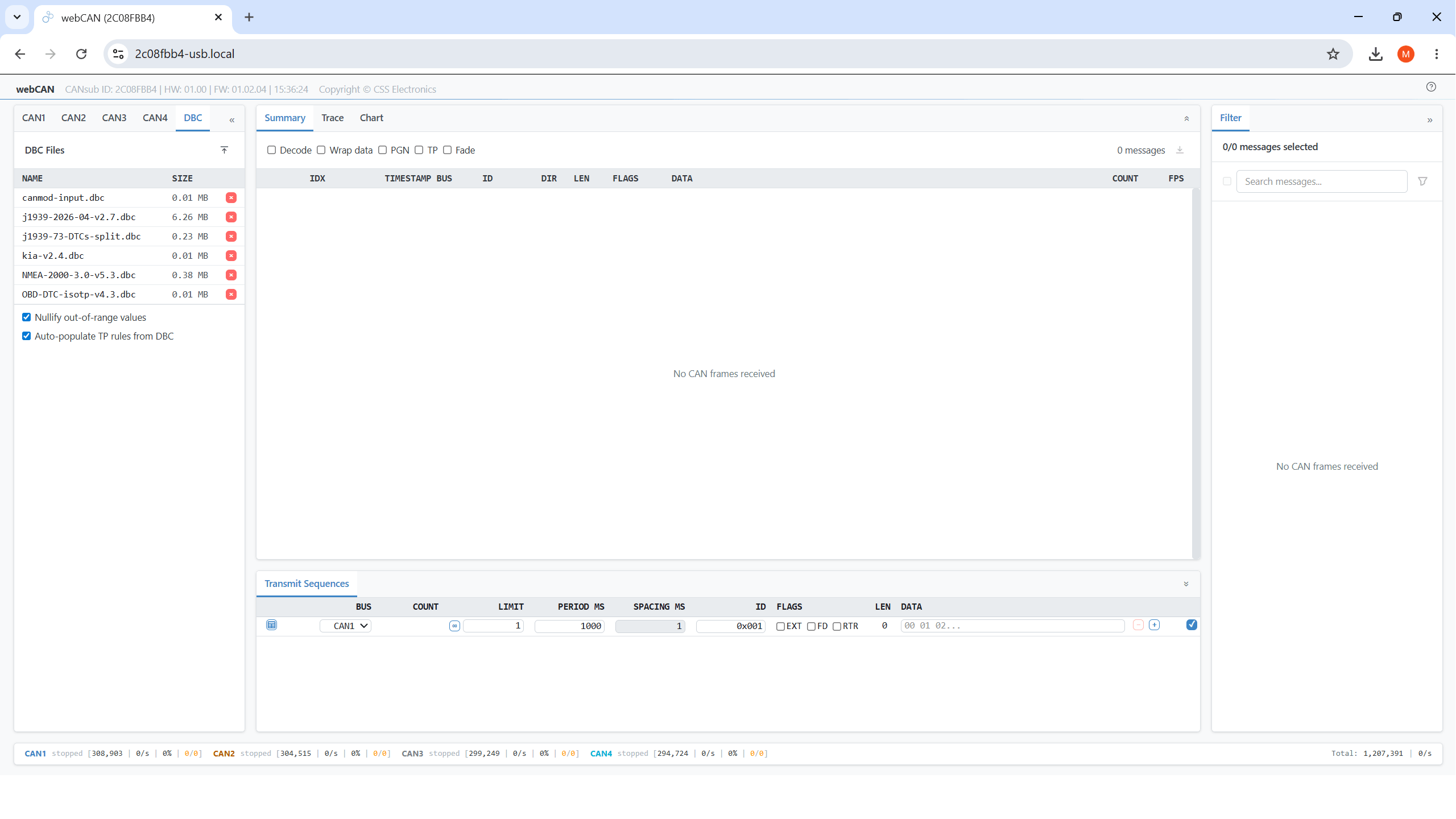
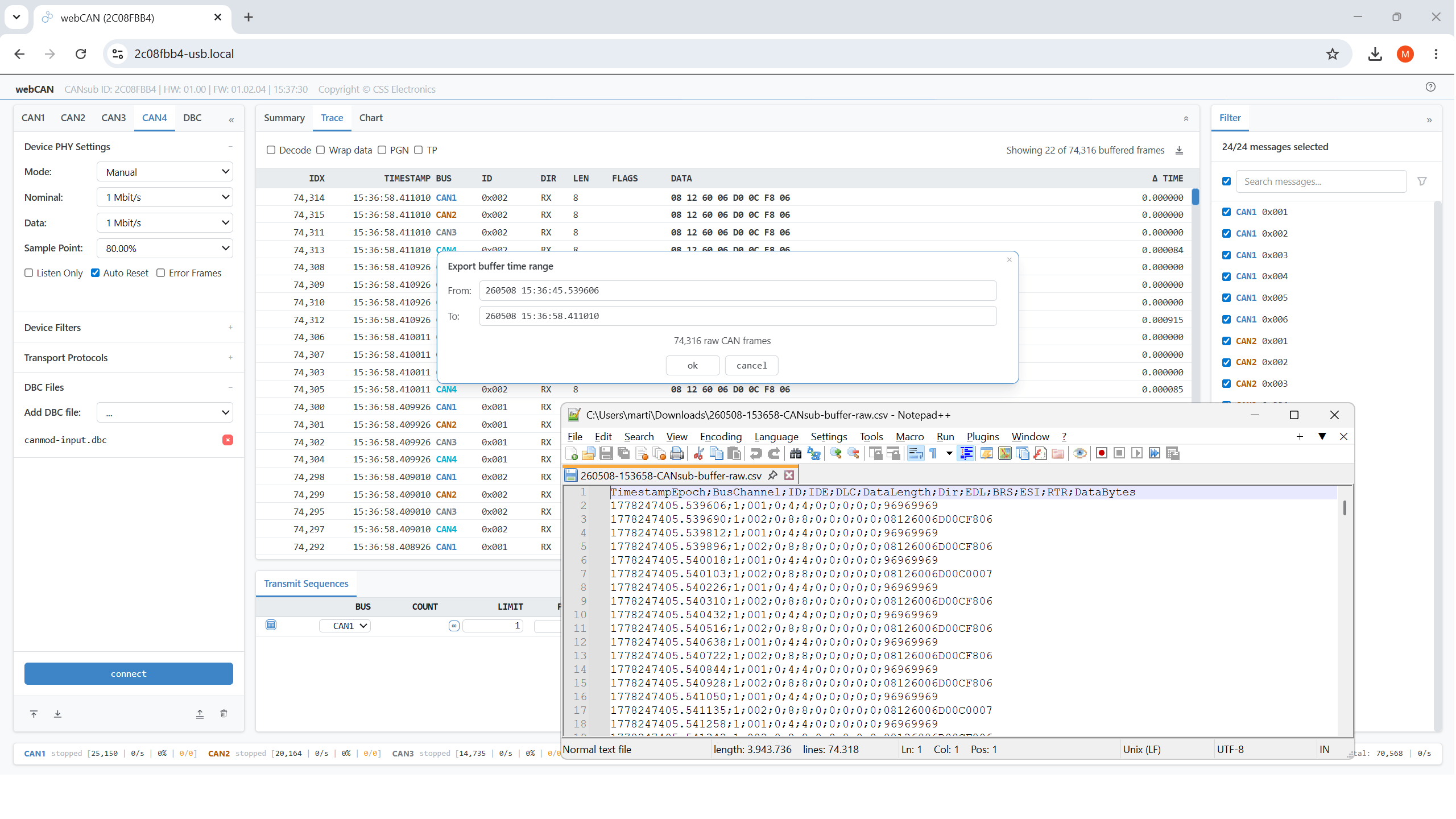
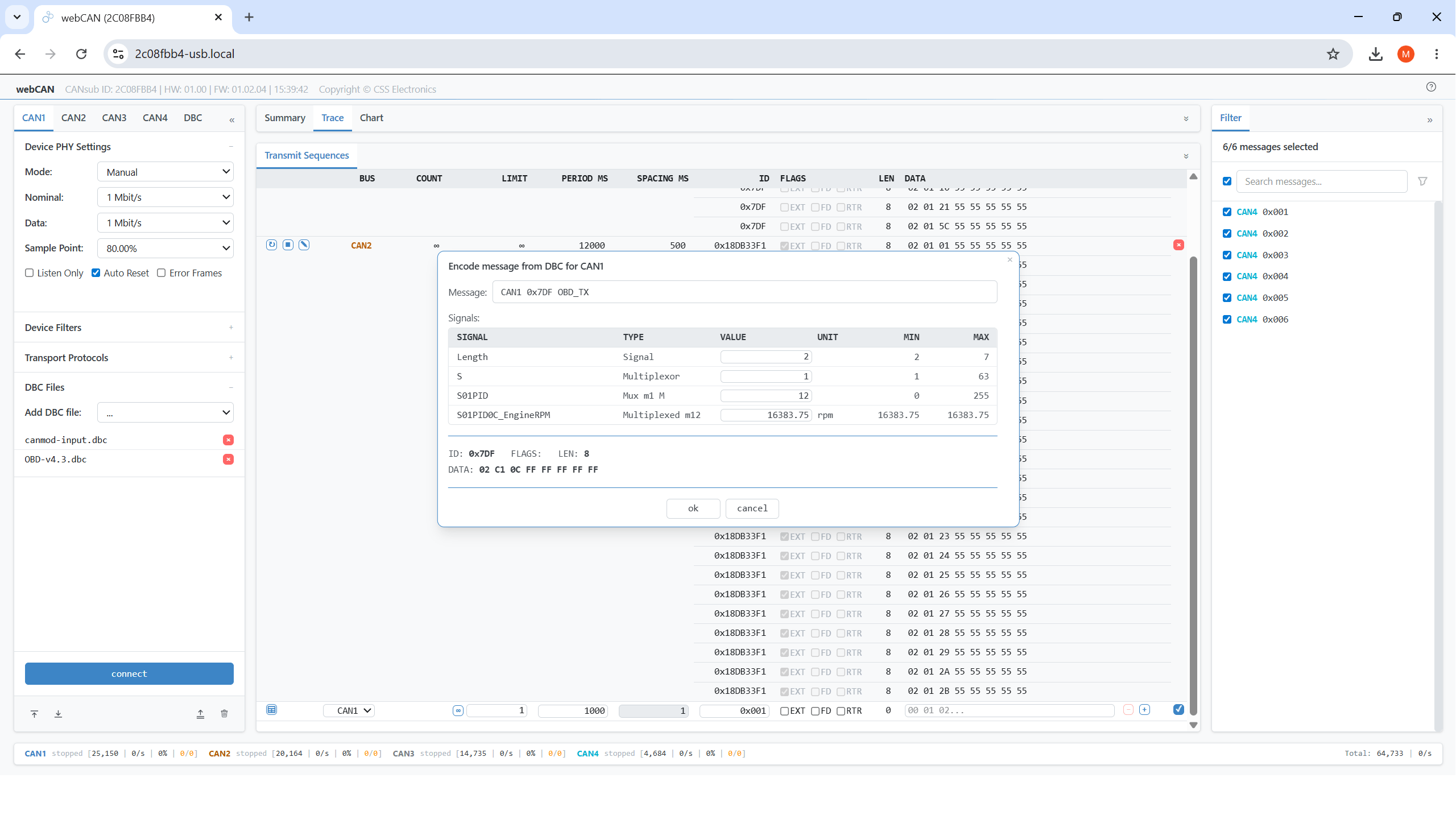
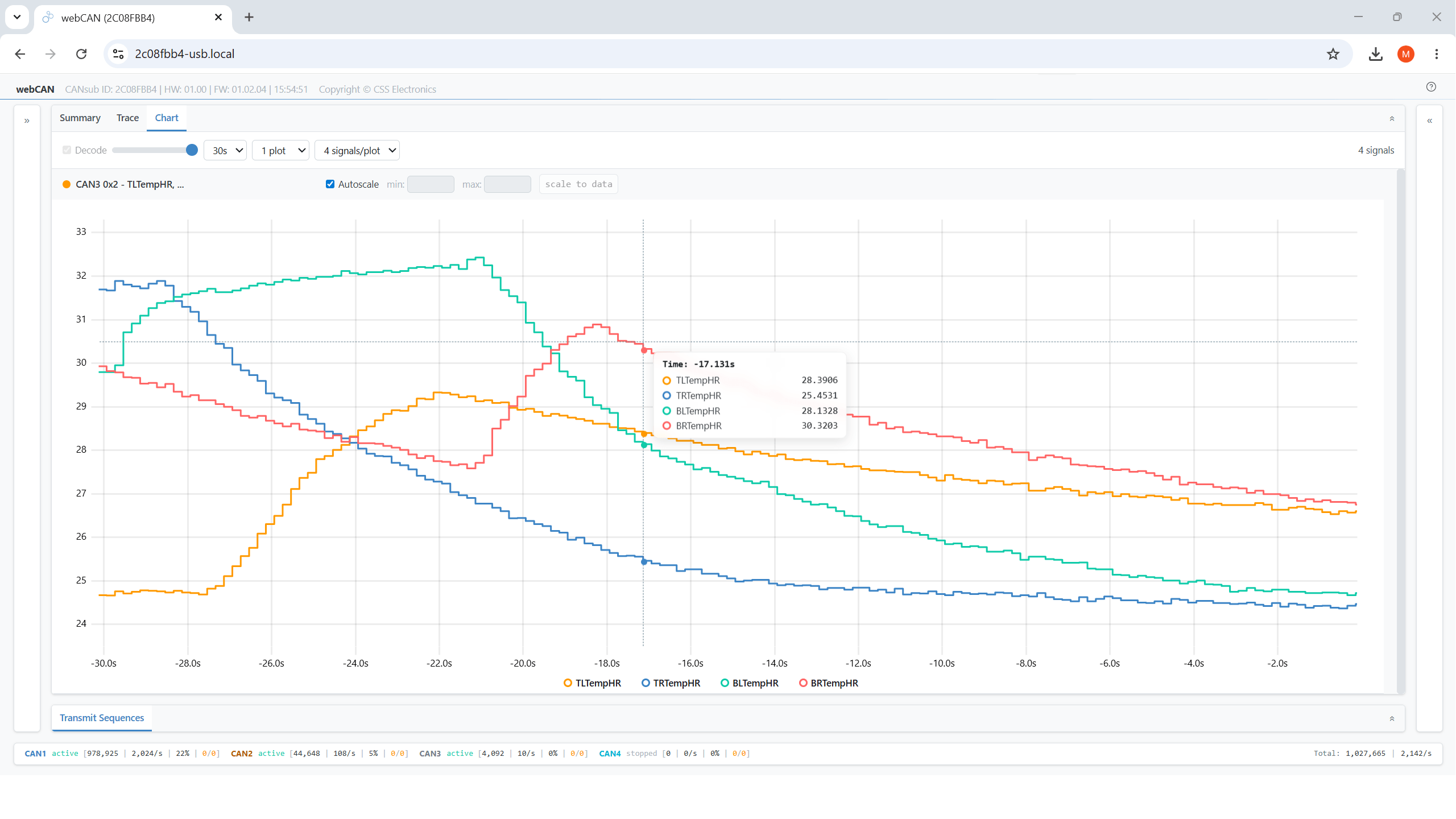
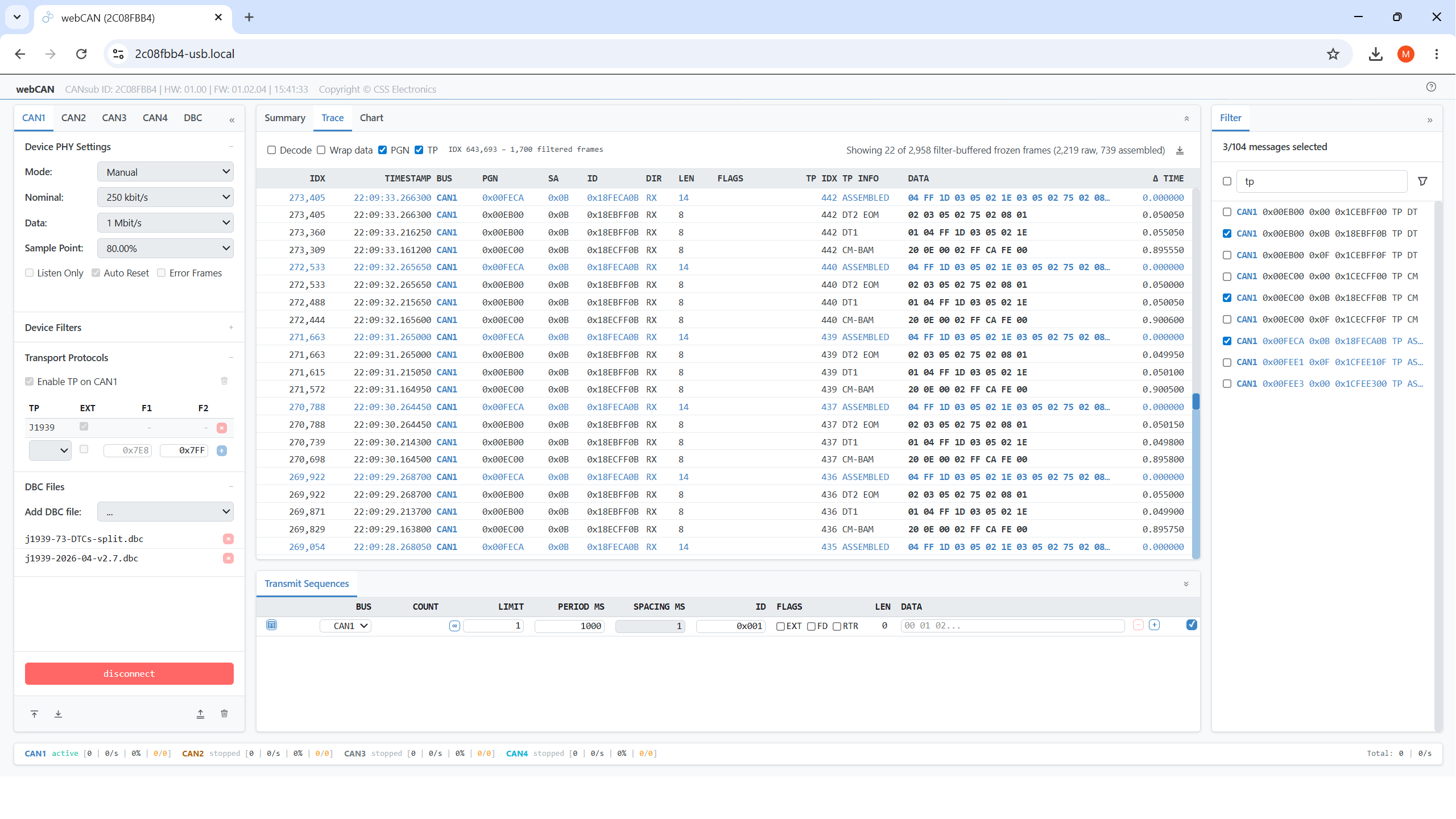
Below we outline example use cases for the CANsub and webCAN:

Diagnose CAN issues with raw, decoded and plot views
Need to inspect raw frames, decoded signals and CAN errors in one place?
Connect e.g. the CANsub.4 to your vehicle/machine, configure the bit-rate per channel (or auto-detect) and load your DBC files. Use the summary view to gain a quick overview of unique ID/signal entries and their latest data - or use the trace view to navigate cross-channel, time-sorted historical data. The filter panel lets you quickly batch-select IDs/signals of interest, while the chart view lets you visualize multiple CAN signals in either real-time - or throughout the full historical trace buffer.
Deploy webCAN across a multi-CANsub test lab
Need to monitor multiple CAN buses in a test lab without per-PC installs?
Connect each CANsub in your test lab to the router via Ethernet - optionally with a PoE adapter to keep the lab wiring clean. Engineers on the network can then open the webCAN URL for any specific device in their browser - zero installation, regardless of OS or PC. Bookmark each device URL once and the bench is ready next time. Save the per-device PHY, filter and DBC configuration as a JSON file and reload it onto a new CANsub in seconds - adding another rig is a one-click operation. If you need one shared time base across the lab, the CANsub also supports PTP for 10 µs cross-device clock sync - see our CAN via Ethernet article.


Run wireless diagnostic requests on vehicles in the field
Need to troubleshoot a vehicle in the field - without physical access?
Connect the CANsub via Ethernet to a WiFi router on e.g. heavy-duty vehicles. Field technicians with WiFi access can now open webCAN wirelessly in their browser - with no installation. Use periodic transmit sequences to send extensive diagnostic request sequences with 10 µs scheduling on the device itself for rapid in-field troubleshooting. Save the full setup as JSON and reload on demand to repeat the same diagnostic playbook. webCAN also supports transport protocols like J1939 TP and ISO-TP, critical in displaying e.g. diagnostic trouble codes (DTCs) like the J1939 DM1 in real-time.
Reverse engineer a vehicle CAN bus from your laptop
Need to decode unknown CAN frames without specialized software?
webCAN is great for ad-hoc reverse-engineering work - the summary view groups raw frames per CAN ID with a byte-fade heatmap that spotlights dynamic content. Capture events (e.g. button presses, door open/close), analyze the multi-million-frame buffer for context, and export to CSV for analysis. Iterate on a WIP DBC via our DBC editor and reload it in webCAN to 'reflash' the trace - and validate your signal encoding in seconds via e.g. plot visualization.

Full feature list
Below is an exhaustive list of webCAN features grouped by area:
| DEPLOYMENT & ACCESS | |
|---|---|
| Embedded web app | Served from CANsub firmware over USB or Ethernet - no install, no driver |
| Browser based | Browser based - runs on any device/OS (Windows, macOS, Linux, iPad, Android, ...) |
| Multi-user | Each browser session is independent - open e.g. CAN1 on one PC and CAN2 on another |
| HTTPS / TLS | Self-signed certificate from the device - point-to-point, no cloud dependency |
| CAN BUS SUPPORT | |
| CAN channels | Parallel streaming of up to 4 x CAN FD channels |
| Bit-rates | Nominal up to 1 Mbit/s, CAN FD data up to 5 Mbit/s, selectable sample point |
| Bit-rate matrix | Curated bit-rate / sample-point matrix covering all standard rates |
| Auto-detect | Cycles standard rates, listens for valid frames, locks to the first match (incl. FD support) |
| Device filters | Configure device CAN ID filters (range/mask) to control incoming traffic |
| Hardware timestamps | webCAN displays the 1 µs RX/TX hardware timestamps |
| Bus state | Live indication: active / warning / passive / bus-off / stopped |
| Status bar | Device-reported state, frame count, frames/sec, busload %, error counters and clock |
| Listen-only | Per-channel toggle for passive monitoring without ACKing frames on the bus |
| Auto-reset | Automatic recovery from bus-off without manual intervention or power cycle |
| Error frames | Optional capture of CAN bus error frames alongside data frames (marked in red) |
| DBC DECODING | |
| Multi-DBC per bus | Load multiple DBC files and assign one or more per CAN channel |
| PGN support | Full PGN support (e.g. for J1939, ISOBUS, NMEA 2000) |
| Multiplexed signals | Extended multiplexing support (e.g. for OBD2, UDS, XCP) |
| Conflict detection | Automatic CAN ID / PGN conflict detection across assigned DBC files |
| Re-decode | Re-decode entire frame buffer when DBC files are added/removed - incl. for imported raw CSV data |
| Persistent cache | Loaded DBC files and assignments survive page reload via browser storage |
| Nullify out-of-range | Toggle to exclude signal values outside DBC min/max from views, stats and charts |
| SUMMARY VIEW | |
| Raw mode | Aggregate by unique channel & message ID with count, cycle time, fps and last-data preview |
| Decoded mode | Switch to per-signal rows to see the last/min/max/average signal value in engineering units |
| Fade heatmap | Optionally fade 'stale' data bytes based on time-since-last-change (e.g. for reverse engineering) |
| PGN mode | Optionally show PGN and Source Address columns and sort by PGN |
| Wrap mode | Toggle whether to wrap data bytes of e.g. CAN FD or multi-frame (TP) payloads |
| TRACE VIEW | |
| Raw mode | Live/historical view of time-sorted raw CAN frames across all CAN channels |
| Decoded mode | Live/historical view of time-sorted decoded CAN signals across all CAN channels |
| Virtualized rendering | Panel stays smooth at 20K+ frames/sec and millions of stored CAN frames |
| Direction | Distinguishes received frames from frames the device transmitted |
| FILTER PANEL | |
| Unified filter | Pick which raw CAN messages or decoded CAN signals are displayed across webCAN views |
| Composable | Combine bus, ID range, J1939 PGN/SA and DBC-symbol selection in one pass |
| Search | By hex ID, message name, signal name or PGN - case-insensitive substring |
| Mode-aware | Switches between message-level and signal-level lists based on decode mode |
| Show selected | Toggle to collapse the list to just active selections for quick audits |
| Per-bus selection | Same IDs on different channels are filtered independently |
| LIVE CHARTS | |
| Visualize | Instantly visualize DBC decoded CAN signals at up to 50 Hz for smooth plots |
| Dynamic sampling | Automatic lossless resampling via min-max envelope downsample for very high-frequency signals |
| Stacked plots | 1, 2 or 3 slots stacked vertically with a synchronized live time axis |
| Signals per plot | 1-5 signals overlaid with distinct colors and legend per plot |
| Drag-to-zoom | Flexibly zoom-in on any plot - synchronizes X-range across all plots |
| Y-axis | Per-plot autoscale, manual min/max, or scale-to-visible-data with one click |
| Crosshair | Cursor tooltip shows exact value of all plot signals at the hovered timestamp |
| Time window | Configurable: 1-60 seconds |
| TIME NAVIGATION & HISTORY | |
| Timeline slider | Navigate buffered raw/decoded data history in either trace or chart view |
| Frame buffer | Multiple million frames per session for long captures (RAM circular buffer) |
| Synchronized views | Trace and chart views share the same cross-tab time position |
| TRANSPORT PROTOCOL (TP) | |
| Multi-protocol support | Support multi-frame payloads for ISO-TP (ISO 15765-2), J1939 TP, NMEA 2000 Fast Packets |
| Display | Toggle TP columns in raw summary/trace views to display TP frame type and session ID/status |
| Per-bus rules | Configure TP rules per CAN channel, with multiple ISO-TP / NMEA carriers per bus |
| Raw + assembled | Assembled TP payloads appear as 'synthetic frames' along raw CAN frames in Trace/Summary |
| DBC decode | Full support for DBC decoding TP data to extract CAN signals |
| DBC auto-populate | Auto-load TP rules from loaded DBC files for convenience (or define manually) |
| Variable length | Support for variable length signal decoding (e.g. J1939-73 DM1 DTC signals, OBD DTCs etc) |
| Re-assemble | Re-run assembly across frame buffer if TP rules are added/removed - incl. for imported CSV data |
| Persistent cache | TP rules and per-bus enable state survive page reload via browser storage |
| TRANSMIT | |
| Multi-sequence | Set up multiple independent transmit sequences per CAN channel |
| Scheduling | 10 µs device-side resolution - much finer than typical host-driven 1 ms tools |
| DBC encoder | Pick a message, type physical signal values, get a fully encoded frame back |
| PGN-to-ID | DBC encoder tool supports specifying PGN Priority/SA/DA to produce a 29-bit CAN ID |
| Multi-frame | One transmit sequence cycles through N frames with configurable inter-frame spacing |
| Sequence config | Per-sequence period, inter-frame spacing and TX limit (count or infinite) |
| Config storage | Transmit sequences are part of the saved device configuration |
| Live count | See how many times each sequence has been transmitted |
| Runtime control | Reset count, stop, edit and delete - all without disconnecting the bus |
| CSV EXPORT/IMPORT | |
| Summary export | CSV export of summary view, raw or decoded, with full statistics columns |
| Trace export | Easily export the raw/decoded trace buffer (up to 2M CAN frames) to CSV |
| Interoperability | CSV opens cleanly in Excel, Python API and pandas for downstream analysis |
| Import | Re-import raw CAN trace CSV files for analysis, DBC decoding, plotting in webCAN |
| Standardized | Raw CSV format matches CANedge MF4 converter output (enabling import of CANedge data into webCAN) |
| Convert | Raw CSV files can be easily converted to e.g. Vector ASC, PEAK TRC, SocketCAN LOG via python-can |
| Filters | webCAN ID/signal filters apply to all CSV exports, enabling flexible sub-exports |
| Sub-period | Optionally export a sub period of trace buffer (e.g. to avoid 1M Excel row limitations) |
| DEVICE CONFIG MANAGEMENT | |
| Save config | Download CANsub config file (JSON) with PHY settings, device filters & transmit sequences |
| Load config | Load a CANsub config file to quickly update settings e.g. for a specific project |
| Node simulation | Transmit lists are saved alongside PHY/filters - share full setups in one file |
| OTHER | |
| Tooltips | Hover tooltips enable ease-of-use for new users |
| Responsive layout | Works on different resolutions incl. laptops, large screens, tablets, smartphones |
| Keyboard shortcuts | Use keyboard shortcuts for swift view navigation, full-screen mode and more |
FAQ
webCAN is the browser-based CAN bus GUI that ships with the CANsub interface. The full app is embedded in the device firmware - when you connect the device via USB/Ethernet, the device exposes a URL that serves the entire application directly to your browser. As a result, the software requires zero installation - and runs on any operating system (Windows, Linux, MacOS) and any device (laptop, tablet, smartphone, ...).
Yes. webCAN runs 100% offline and entirely client-side in your browser, no internet access is required/relevant at any point. Specifically:
- The full webCAN app is served by the CANsub itself, not from any external website or CDN
- No external libraries, fonts or scripts are loaded at runtime
- No communication with CSS Electronics servers, cloud services or third-parties
- All decoding, plotting and export processing happens locally in your browser
- DBC files persist in browser storage (cookies / local storage), nothing leaves your device
This means webCAN works on air-gapped networks, in vehicles without LTE coverage, behind corporate firewalls and in regulated environments where outbound internet is blocked. The only network link required is the direct connection between your computer/tablet and the CANsub itself, over USB or Ethernet.
No. webCAN is served by the CANsub itself over HTTPS - your browser is the only client you need. Just enter the device URL shown on the LCD display and the full app loads.
This makes webCAN work on locked-down corporate or factory PCs where you cannot install software and on any laptop, tablet or phone. The same CANsub device can be opened from several PCs simultaneously - each browser session is independent. For example, two engineers can share a single CANsub with one engineer monitoring CAN1 and another monitoring CAN2. However, a single CAN bus can only be monitored by one device at a time.
webCAN supports the DBC features needed for typical CAN, J1939, OBD2, NMEA 2000 and ISOBUS work:
- Multiple DBC files per CAN channel with deterministic resolution
- PGN-based message lookup for use in e.g. J1939, ISOBUS, NMEA 2000
- Multi-level multiplexed signal decoding (required for OBD2/UDS)
- Big-endian (Motorola) and little-endian (Intel) signals
- Signed/unsigned, scaled and offset signal definitions
- Automatic conflict detection across assigned DBC files
- Transport protocol assembly (ISO-TP, J1939 TP, NMEA 2000 Fast Packets) and subsequent DBC decoding
DBC files are cached in the browser and survive page reloads. You can hot-reassign DBC files at any point - webCAN then re-decodes the entire frame buffer in place.
Yes. webCAN losslessly handles 20K+ frames/second sustained from the CANsub. The trace, summary and filter views use virtualized rendering - only the rows visible on screen are mounted - so the GUI stays smooth even at full busload, and the in-browser buffer is sized for multi-hour sessions on commodity laptops. Plots similarly downsample high-frequency signals to a capped number of points using a min-max methodology (similar to oscilloscopes).
That said, realising the full throughput depends on the host device. As a concrete example, webCAN has been validated at 20K+ frames/second on a Lenovo ThinkPad with an AMD Ryzen AI 7 PRO 350 (2.00 GHz, x64) and 32 GB RAM running Windows. webCAN also runs on lightweight platforms such as the Raspberry Pi 5 - though high busloads can result in a more laggy experience here.
In such cases, configure device filters directly on the CANsub via webCAN. The device will then drop unwanted IDs before they hit the network or USB link, so only the relevant frames reach the browser. This is also useful if the goal is to use webCAN as a minimal dashboard tool served from a low-spec tablet or Pi.
Yes. Because webCAN is delivered as a standard web application over HTTPS, it runs the same on Windows, macOS, Linux, ChromeOS, iOS and Android - across laptops, tablets and phones. There are no drivers, no installers and no OS-specific builds.
If you connect the CANsub to a WiFi-capable router via Ethernet, any device on the network can open the device URL and access webCAN directly - useful for in-vehicle Android tablets, iPads on a test bench or mobile diagnostics from a phone. See our CAN via Ethernet article for practical LAN, WiFi and LTE showcases.
webCAN covers most of the same core feature surface as tools like PCAN-Explorer for daily CAN bus work - trace, summary, DBC decoding, plots, transmit and CSV export. Further, webCAN offers some unique differentiators:
- Zero install: webCAN ships on the device and can be opened instantly in the browser
- 100% free: The software is 100% free and requires no subscriptions
- Cross-platform: webCAN runs on every major OS and any device
If you prefer analyzing data in Vector/PEAK tools, you can easily export CANsub traces from webCAN as CSV files that can be converted to Vector ASC or PEAK TRC files via the CANsub Python API, e.g. using the command line. This lets you easily review data in other tools as needed.
Compared to SavvyCAN (free, open source), webCAN offers a similar reverse-engineering toolkit (byte-fade heatmap, history navigation, summary stats) but in a browser-native UI with no install. However, SavvyCAN remains a great open-source desktop alternative that offers some unique CAN sniffer and reverse engineering tools - and the CANsub of course natively integrates with SavvyCAN.
Yes. webCAN holds up to 2,000,000 frames in a circular RAM buffer for instant scroll-back. From the trace view you can export the full filtered buffer to CSV (raw or DBC decoded), and from the summary view you can export raw or DBC-decoded statistics to CSV as well. The export tool also lets you selectively export just a specific period of data, thus getting around e.g. row limitations in Excel. The CSV format opens cleanly in Excel, Python or pandas for downstream analysis - making it easy to combine ad-hoc browser-based inspection with scripted post-processing.
Yes. webCAN is the primary GUI, but the CANsub also exposes its streaming protocol via several open interfaces:
- Python API (python-can): scripted streaming, decoding and automation
- SocketCAN: native Linux integration for any SocketCAN-compatible tool
- SavvyCAN: open-source Qt GUI for streaming raw / DBC-decoded data
- OpenAPI + websockets: REST-based configuration and binary streaming for custom apps
- JS/TS libraries: Ready-to-use libraries for building custom CANsub web apps
Ready to stream CAN data in your browser?
Get your CANsub today!